> ## Documentation Index
> Fetch the complete documentation index at: https://epayclub.com/llms.txt
> Use this file to discover all available pages before exploring further.
# PayPal
> Collect payments from PayPal wallets.
Accept payments from over 432 million PayPal wallet users globally. This payment method seamlessly integrates the PayPal checkout experience into your application.
This payment method only supports one-time (non-recurring) payments.
## Payment flow
Several steps occur between collecting the customer's PayPal information and completing the charge.
We'll proceed assuming you've already set up a customer order. If you need to create one, you'll find the steps [here](/orders/create-orders).
After creating the order, you need to follow these steps to complete the PayPal charge.
1. [Collect](#collecting-the-customer’s-paypal-information) the customer's PayPal information.
2. [Encrypt](/api-basics/encryption) sensitive data within your request.
3. Redirect the customer to the PayPal checkout page to authorize the charge.
4. Confirm the payment and inform the customer of its outcome.
### Collecting the Customer's PayPal Information
Present the customer with a secure form to gather their card details. These details are crucial for initiating the transaction and consist of:
| Customer information | Parameter | Example | Required |
| :------------------- | :--------------------------------- | :----------------- | :------- |
| Customer Name | `card.billingAddress.customerName` | Roosevelt Smart | Yes |
| House Number | `card.billingAddress.HouseNumber` | 27 | Yes |
| Street | `card.billingAddress.street` | 58 Blatchington Rd | Yes |
| City | `card.billingAddress.city` | Hove | Yes |
| State | `card.billingAddress.state` | East Sussex | Yes |
| Country | `card.billingAddress.country` | GB | Yes |
| Zip code | `card.billingAddress.zipCode` | BN3 3YH | Yes |
| Phone Number | `card.billingAddress.PhoneNumber` | +4467465466745 | Yes |
Combine the card data, order reference, `paymentoption`, and the customer's country. Encrypt the request before sending it to the pay order [endpoint](/api-reference/orders/pay).
```json Example (Unencrypted) theme={null}
{
"reference":"40cac2b6-6793-489a-8c96-c97a18b3c58a",
"paymentoption":"PAYPAL",
"card":{
"billingAddress":{
"customerName":"Roosevelt Schinner",
"street":"311 Sophie Mountains",
"HouseNumber":"67",
"city":"london",
"country":"GB",
"state":"LD",
"zipCode":"KJ1 4RL",
"PhoneNumber":"+4467465466745"
}
}
}
```
```json Example (Encrypted) theme={null}
{
"data": "B9pQJ1HoxybgfjNnEro+26w7lQZ6jriF3AFiUeGH2Ggacn6cF0srUlqiHEXeEncJcMw6ThDobjuS+AsmvhNfvGPGMddjbt5rcK2JrUnUI4cHk0XebJKoNnjEqivcyq0UKEMdYOLd6mYZtvKu5FMlpz0Lo0aMY49pnYvUGLSsCf/wOhlPx9PHgQDXptT+WBJcO3lzeD8O0S4IVSWPCWPLi7GhGlqhZpheEi1FHq39TCHk12hL3sqkkIktZIkkQVAe8AkwZGhy/CMJZrTzU6IXZr2ulT7mJenZljSk66m0pARcUqwMw/+5PEPECDo8SX3IkX2hmym02pGuWZeHE9ONWcaW7h8UIroQ/+kThz/RtP/UMiK3596cij66JcW+RcXKPiqNKysskcnaOlQFIFuhEiAczimLgd320RrQzehaw1C33UGsCzAG1p2EnDthjTF63BZtEhVlu9kN7qtFCz9AvojZeaZFKOxpJJ0usfwl9Hq5oAa56AFt/3IIsvqrAktTOyMgQ/jGQ6uhRYpA6UAH0CcYyv7L99hgVtRTXAxA/rpCtY7aTR9Pjxb5Lt1IV0Q1V8fWxAv0yY+ss07qeiSIsccsdJiN4LaMx3RvmDlu54XF68w51L34hOCDj/NBoPVUZrSaCJK2GPJ6CjOHI8q2/U2TkU+y+a80XCAC/rgqGhw="
}
```
Upon receiving your request, we will return a successful response containing a redirect URL for the PayPal checkout page.
```json 200 OK [expandable] theme={null}
{
"data": {
"paymentDetail": {
"redirectUrl": "https://path/to/test/base/url.php?hash=aHR0cHM6Ly9hcHAtc2FuZGJveC5wYXltYXhpcy5jb20vcGF5bWVudC84ZDY0ZjQxYzE2OTQ0MTljOTlmYjQzNjViNDJiZjRkOA==&client=pp_paypal&invoiceNumber=EPCMMM3VK19CDKX92TAJ5OJ1BM&redirect=",
"recipientAccount": null,
"paymentReference": "CP1B3F264C-8DB1-47C1-A50E-6494FB927D51"
},
"bankTransferDetails": null,
"orderPayment": {
"orderId": 628,
"orderPaymentReference": "PGW-PAYREF-CFE5A0D0D31B4E54AABAAD89F123F422",
"currency": "USD",
"statusId": 2,
"orderPaymentResponseCode": "02",
"orderPaymentResponseMessage": "pending-authenticaion",
"orderPaymentInstrument": null,
"remarks": "Order payment initiated",
"totalAmount": 100.00,
"fee": 0.00
}
},
"status": "success",
"statusCode": "02",
"message": "pending-authenticaion"
}
```
### Authorizing the Payment
After redirecting the customer to the PayPal checkout page, they are presented with the login screen for their PayPal wallet.
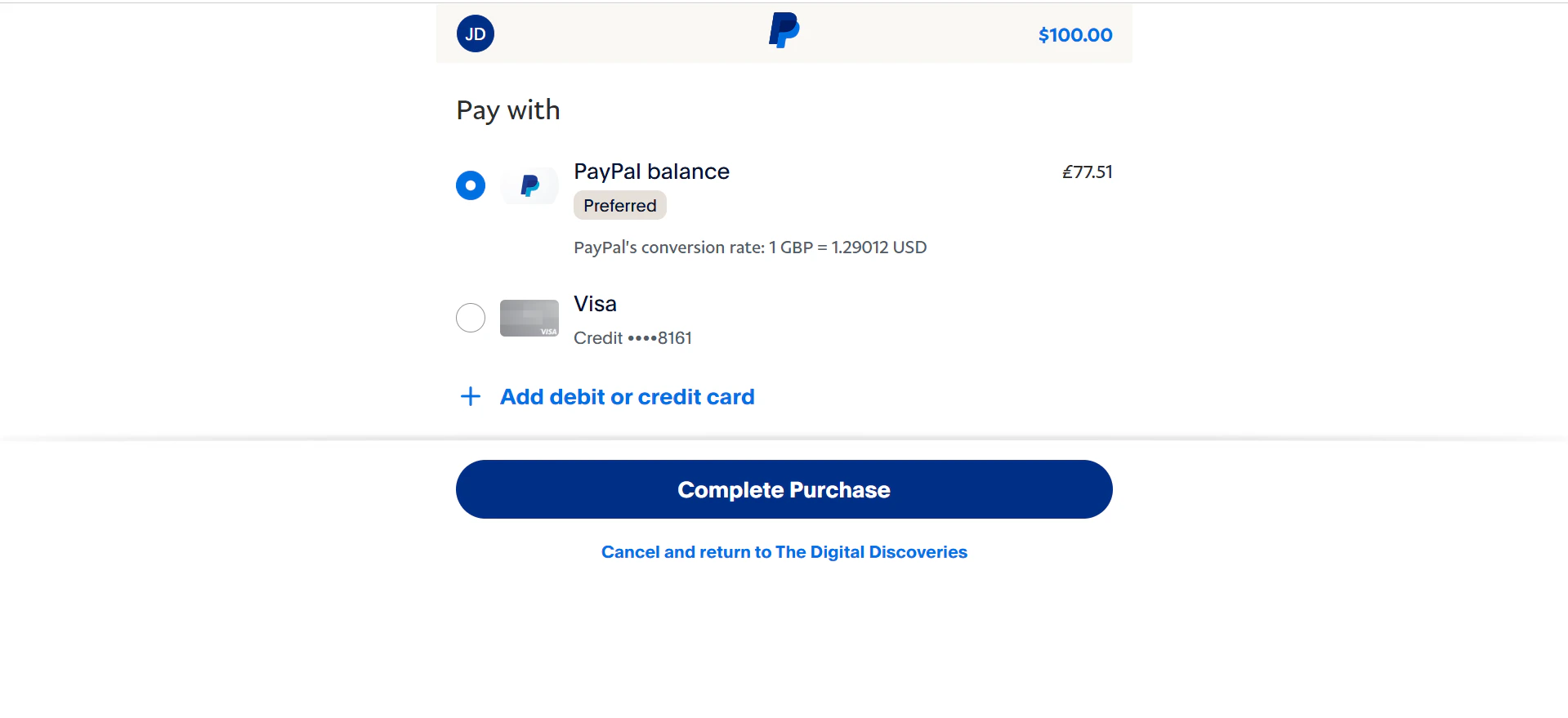
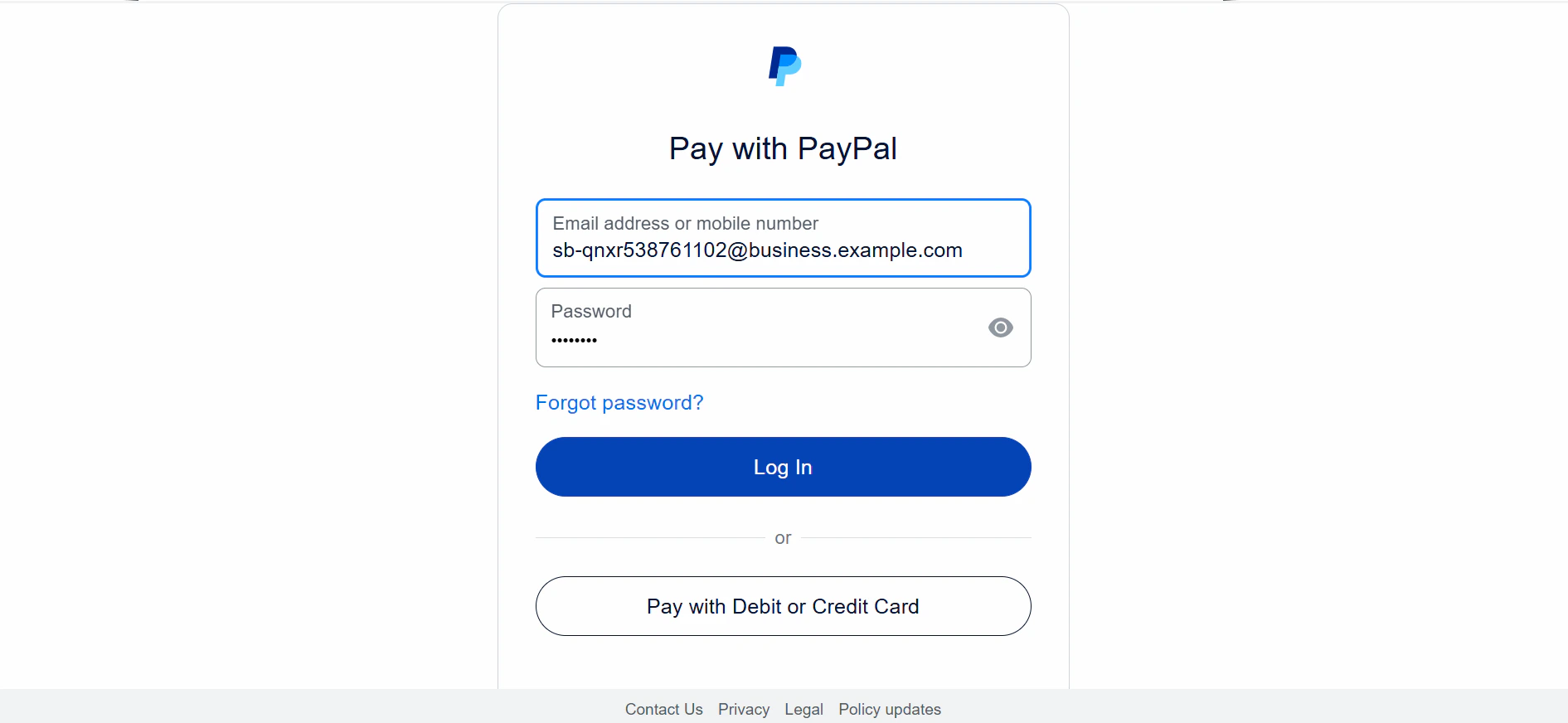 Once successful, the Customer selects either their PayPal balance or linked card to complete the transaction.
 ### Verifying the Payment
[Read](/orders/verify-orders) the transaction verification section to learn how to verify your PayPal transactions.
## Testing your integration
Kindly [contact](mailto:support@epayclub.com) the support team for test PayPal wallet credentials.
Follow these guidelines to successfully test your PayPal integration:
1. Specify a minimum of USD 100 for your test transaction.
2. Use `0@k.com` as the customer's email in your tests.
### Verifying the Payment
[Read](/orders/verify-orders) the transaction verification section to learn how to verify your PayPal transactions.
## Testing your integration
Kindly [contact](mailto:support@epayclub.com) the support team for test PayPal wallet credentials.
Follow these guidelines to successfully test your PayPal integration:
1. Specify a minimum of USD 100 for your test transaction.
2. Use `0@k.com` as the customer's email in your tests.