

Customers today want payments to be quick, easy, and safe. If it’s not, you might lose them when they’re trying to pay. Whether you’re building your own payment process or just want a simple link to get paid, our Payment Link APIs can help you do just that. Payment checkouts let you design your own smooth and branded payment experience right in your app or website. Payment links, on the other hand, are a fast way to get customer info and start payments. They are easy to make, simple to share, and can be used in many places: on your website, on your social media page, or even in an invoice or email. This part will show you how to use payment links. You’ll learn how to start collecting payments faster and in a smarter way – with less work and better results.Documentation Index
Fetch the complete documentation index at: https://epayclub.com/llms.txt
Use this file to discover all available pages before exploring further.
Understanding Payment Links
When a customer opens a payment link, they are presented with a form to enter their personal information like their name, email address and the amount, currency. Their input is validated, and they are redirected to the checkout interface.
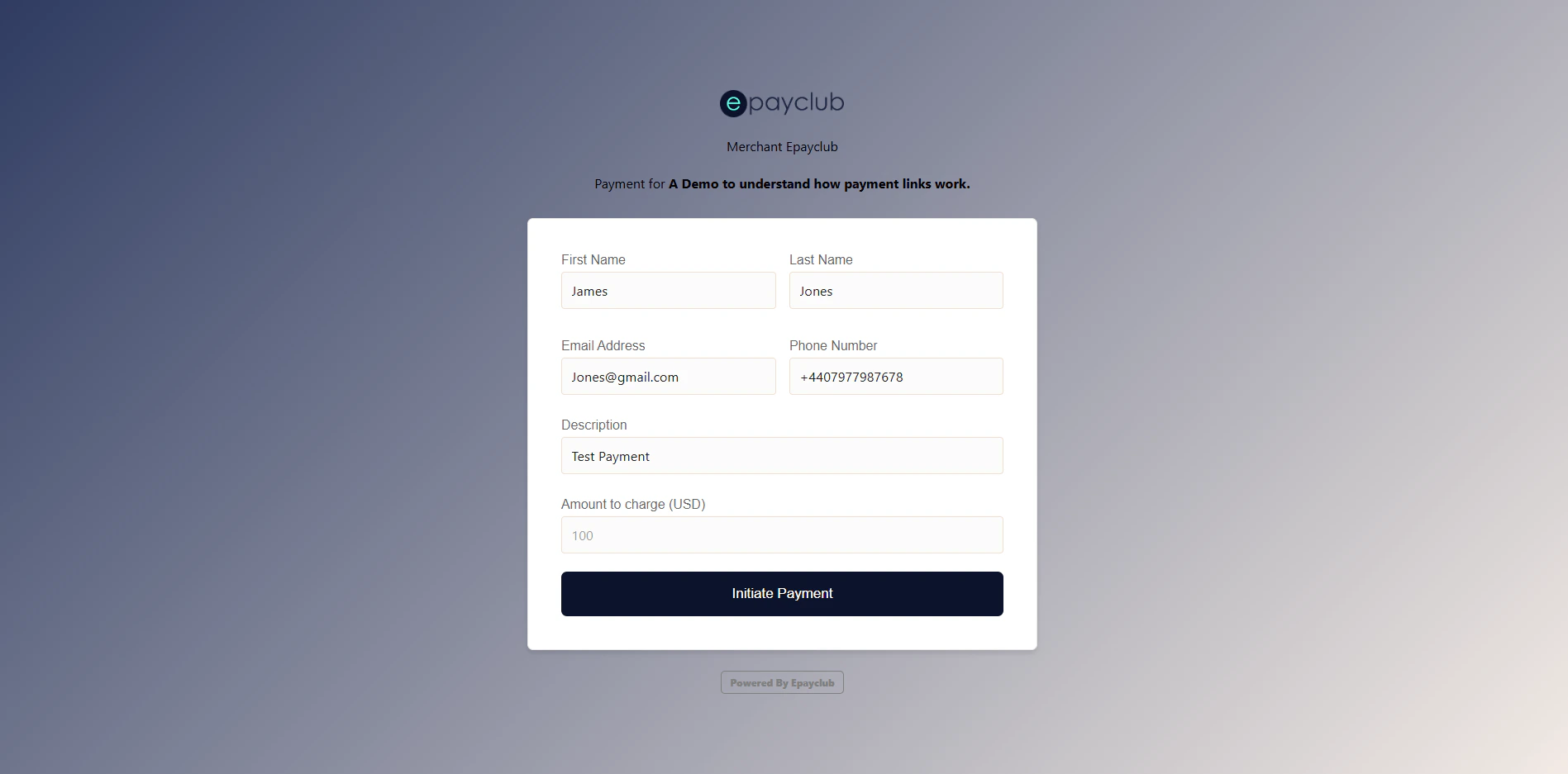
Creating a Payment link
To start accepting payments using payment links, you first need to create one. You can create links for single charge, multiple charges and subscription payments. Let’s review some use cases for the supported kinds of payment before we discuss how to create the link. In the case of a single charge, the customer makes a one-time payment. This applies to most checkout payments for retail businesses where the customer checkouts to complete their order. For multiple charges, the customer makes a regular payment for a fixed period of time e.g the customer is making a weekly payment for seven (7) weeks, this payment differs from subscriptions because of the finite number of payments to be made. In the case of subscriptions, the customer makes regular payments for an indefinite period until the subscription is cancelled.Single Payments
To create a payment link for a one-time payment, send your request to the create payment link endpoint. This request needs to contain the following:| Parameter | Definition | Example | Required |
|---|---|---|---|
| Name | The name displayed on the payment form. | My Demo link | Yes |
| Description | Additional information about the payment form. | Sample checkout | Yes |
| PaymentType | Specify the payment type as either SC, MC and SUB. | SC | Yes |
| Amount | The transaction amount. Leave empty to allow the customer enter the amount value on the payment form. | 100 | No |
| Mobile | The customer’s mobile number. | +4412345678 | No |
| BackgroundImage | Specify the URL for the background image. | https://image.com | No |
| Website | Specify the redirect URL for completed payments. | https://example.com | No |
| Currency | The transaction currency. This defaults to NGN. | GBP | Yes |
| AuthOption | Authentication method, specify AUTH for 3DS and NOAUTH for NoAuth payments. | AUTH | No |
| Limit | The number of subscribers that can use this payment link. | 100 | No |

